How it works
Register Your Account
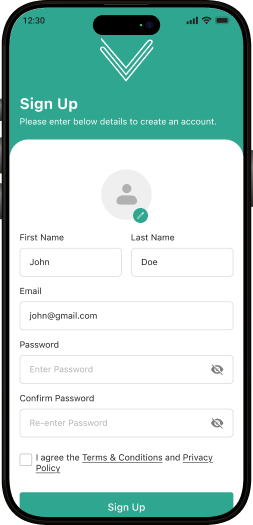
User can signUp themselves on this virtual business card maker app, by fulfilling these requirements:
- Display Picture
- First & Last Name
- Valid Email Address
- Strong Password
- Confirm the given password
A user must be thorough with the terms & conditions as well as the privacy policy of the software provider, before jumping into creating an account.
After registering with the software developer site, the user must proceed with the email verification through the link sent in the mail.
User LogIn
- Next, the user can Log In with the newly-made ID and password to create a virtual business card.
- In case, the user is not verified for Sign In, then he can request the option of resending the verification link.
- Be active, as the link generally expires within 24 hours.
Home screen
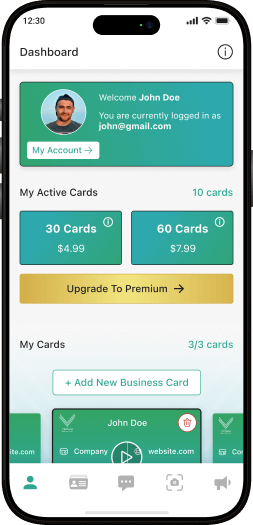
The main home page of the application will have the following options:
- My business cards: Here, all your past and new business cards will be collectively stored.
- Connection List: The new business contacts added will be shown here.
- Chat: The instant messaging feature will help you interact with other business networks.
- Profile: The profile will showcase all the business details that you want to share with others.
- Promotions: Create and share custom posts to promote your business, service, or event with app users.
Purchase Plans
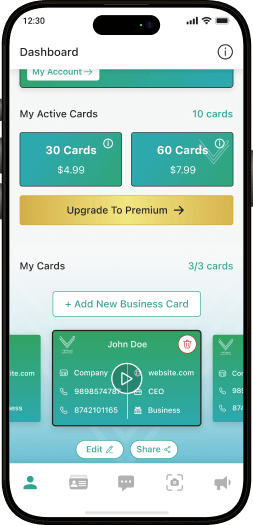
Users can enjoy My Virtual Business Card services in three different purchase plans provided, that will have the following attributes:
- Users can use in-app purchases for buying different plans.
- Users must be able to check & analyze the number of cards left in their account so that they can deduct by giving them away.
- Every new user to the app gets the service of 5 business cards for free.
- After accepting the terms & conditions, save the card for a smooth monthly replenishment.
Package-1 4.99 USD = 30 cards Left
Package-2 7.99 USD = 60 cards Left
Package-3 39.99 USD = Unlimited for 6 months cards Left
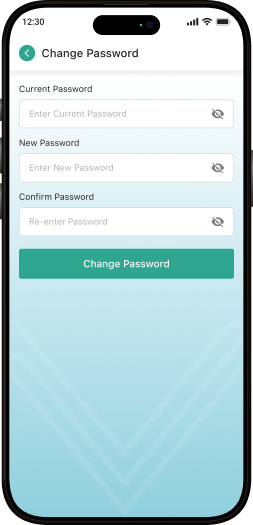
Change Password
The user can change the password, in case;
- he forgets the passwords.
- to make the account more secured.
This can be done by verifying the same with your valid provided email address.
Add New Business Card
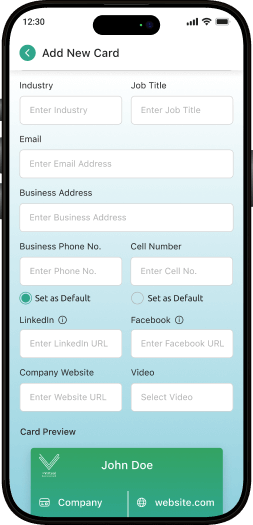
A new business card can be added by:
- Scanning the card on the app and applying Optical Character Recognition on it.
- If all details are found by using the OCR scan, then information must be filled up on its own in the form of various fields.
- Rest other fields can be left blank for the user to complete it or edit the form.
Manual Card Scan
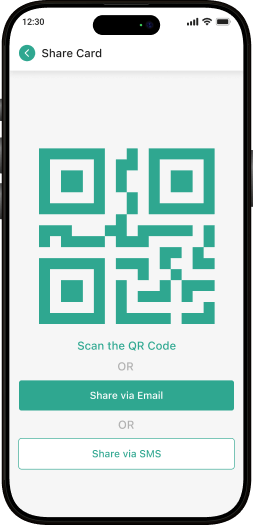
- The user can manually add the traditional print card, by simply scanning it on QR code in the app.
- This will help in sharing the paper cards also in a virtual manner, without wasting paper.
- You can even add a business card by scanning it from the other device.
- While adding the business card to the app, save the location too.
Business Card
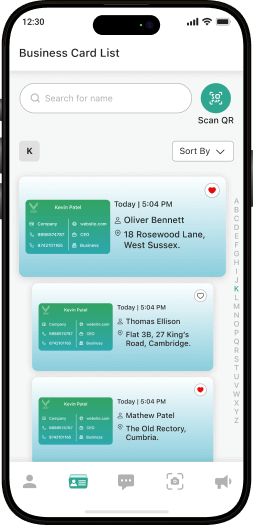
The app provides a streamlined and organized view of all business cards
Users can:
- View all saved business cards in a list format
- Sort cards by name, date, or custom filter
- Instantly search cards using the search barm
- Quickly scan and save new cards via QR
- See contact details like:
Name, Company, Email & Phone, Address, Job Title - Access recently added or interacted cards
- Tap to favorite or highlight important contacts
- Efficiently manage and share cards anytime
Stay connected and organized with a modern, contact-first interface that simplifies your digital networking experience
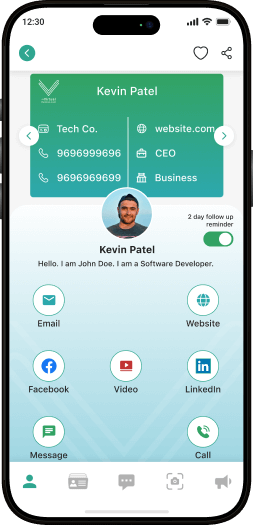
Card Detail Screen
The app provides a detailed and interactive view of an individual’s business card Users can:
- View the full business card in a visually rich format
- Swipe through multiple cards saved for a single contact
- View key details like:
Name, Company, Phone Numbers, Job Title, Website, Industry/Business Type - View the profile picture and short bio/introduction
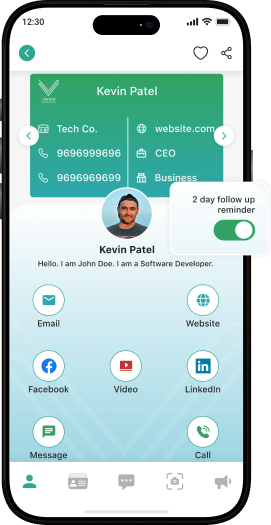
- Enable follow-up reminders (e.g, 2-day follow-up toggle)
- Instantly take actions via dedicated buttons for:
Email, Website, Facebook, Video, LinkedIn, Message , Call - Easily navigate between cards using arrows or swipe
Biometric Authentication
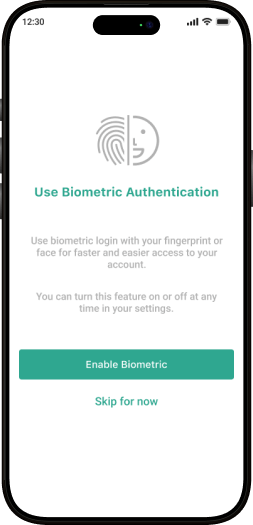
The app offers secure and convenient access through biometric authentication. Users can:
- Enable fingerprint or face recognition for faster, password-free login
- Enjoy enhanced security while accessing their account
- Choose to enable or skip biometric login during setup
- Manage biometric settings at any time from the app settings
- Quick access using device-supported biometric methods (Face ID or Fingerprint)
- Option to activate or deactivate at user’s convenience
- Skipping does not affect access; users can log in using other credentials
- Promotes secure identity verification and faster user experience
Features:
Stay secure and save time by enabling biometric authentication for effortless access to your profile.
Chat Room
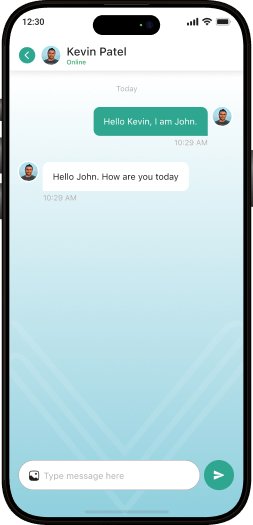
- All the interactions with other businesses done through instant messaging are depicted here.
- The chat expires after a period of 30 days on its own. So, you need to save any kind of important information beforehand.
- For any new message, a chat notification will be popped up on the app.

Message
- The messages include user-friendly features similar to other popular chat apps in the market.
- Emojis, GIFs, and stickers can be sent, making conversations more expressive and engaging.
- Users can share photos and videos directly in the chat, offering a seamless communication experience.
Auto Follow-Up Reminders
- Stay engaged and build stronger professional relationships.
- Smart Notifications: MVBC automatically sends you a reminder 2 days after sharing a card.
- Effortless Follow-Ups: Get prompted to reconnect and keep the conversation going.
- Consistent Networking: Prevent connections from going cold with timely, automated nudges.
This feature ensures you maintain momentum with every new contact — without having to think twice.
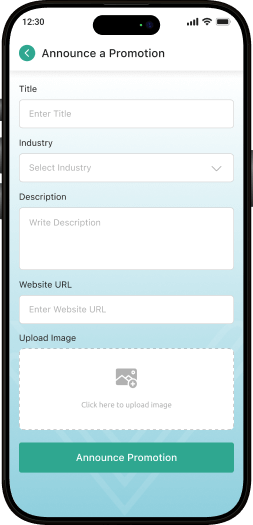
Announce a Promotion
The app allows users to share business promotions directly with their network. Users can:
- Enter a promotion title for quick identification
- Select the industry relevant to the promotion
- Add a detailed description outlining the offer or event
- Include a website link for more information or external redirection
- Upload a promotional image to visually enhance the announcement
- Tap Announce Promotion to instantly share with their network
Promote your latest offer or update with ease and keep your network engaged with timely announcements.
View Promotions
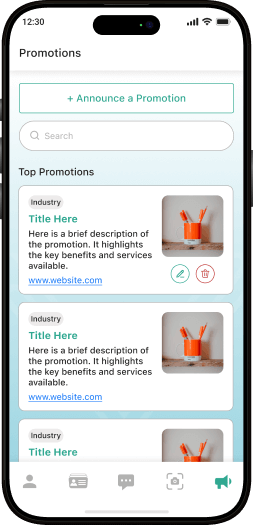
– This screen displays all active promotions shared by the user or others in the network. Users can:
- Tap the + Announce a Promotion button to create a new promotion
- Use the search bar to filter promotions by title, description, or industry
- View a list of Top Promotions, including:
Industry Type, Promotion title, Brief description, Website link for more details, Image thumbnail representing the promotion
This screen makes it easy for users to browse, manage, and engage with ongoing promotions in a professional and organized way.
Location Tracking
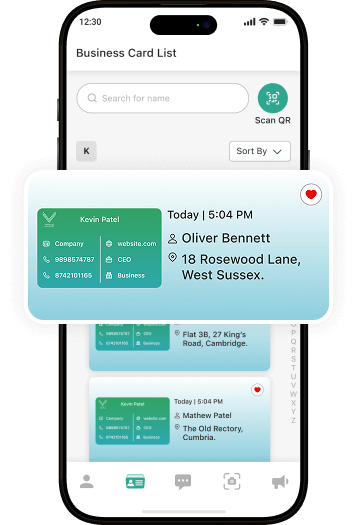
- Keep track of where each business card exchange takes place.
- Automatic Detection: When you share a business card using MVBC, the app automatically captures the location of the exchange.
- Interaction History: Each card is tagged with the time and place it was shared.
- Perfect for Networking: Easily recall where you met someone — whether at events, meetings, or spontaneous encounters.
This feature adds context to your connections, helping you build stronger, more organized professional relationships.
Contact Us
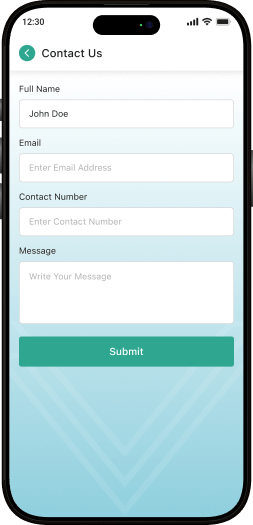
In case of any query, users can contact us by providing the following details:
- Full User Name
- Email Address
- Contact Number
- Message